Edit price estimates and quotes
You can customize pricing for your project before sharing with the homeowner. You can make a variety of changes - remove line items, hide line items, edit line item totals, and add cabinetry multipliers and discounts. The way you edit pricing is the same for both estimates and quotes.
Watch the video clip or scroll down for more details:
Getting started
You'll find the ability to edit pricing at the top of the project workspace, in the Price Summary section.
First, click the EDIT button.

Click on the carrot image next to the category name to expand it and show sub-items.

What edits can you make?
Show range vs single number total
You can choose to show a price range or a single number. Click on the toggle next to Price Range to make this change. Save your changes.

Remove line items
You can remove a line item entirely from your proposal by clicking on the toggle next to the item. This will remove the item from the price total. Save your changes.
Example: if you don't want to include Appliances in your quote, you would click the toggle next to Appliances to turn it off. You can see the total price has changed.

Hide line items
You can hide a line item from your proposal by clicking on the eye icon next to the item. This will NOT remove the item from the price total. Save your changes.
Example: if you want to include Surfaces in your quote but you do NOT want to show this as a separate line item, you would click the eye icon next to Surfaces to turn it off. You can see the total price has NOT changed.

Edit line item totals
You can also manually change the amounts shown for each line item. Click on the number you want to edit and a text box will appear below this number. Type in the price you'd like to use. Don't forget to save your changes.
Example: if you want to add $1,000 to your labor costs, you would click the total next to Labor and type a new total labor cost with that additional $1,000. You can see the total price has changed.

Calculate cabinetry costs and gross margin
Enter your multiplier to calculate your cost and apply markups and discounts to calculate your sales price, all based on the MSRP provided by Skipp. Your gross margin percentage will appear based on these inputs.
Click on the calculator icon next to Cabinetry.
Enter your markup and/or discount to change the price to the customer. Enter your multiplier to help calculate your margin (this won't change the customer price!). Click Save to apply changes.

New: Add custome prices to your price summary
Miscellaneous Tool
The Miscellaneous Tool lets you add custom prices to your price summary—so you can account for extras like delivery or installation and send more accurate, transparent quotes.
Step-by-Step Instructions
- In the Price Summary section scroll down and see the “Miscellaneous” category Click “Edit”
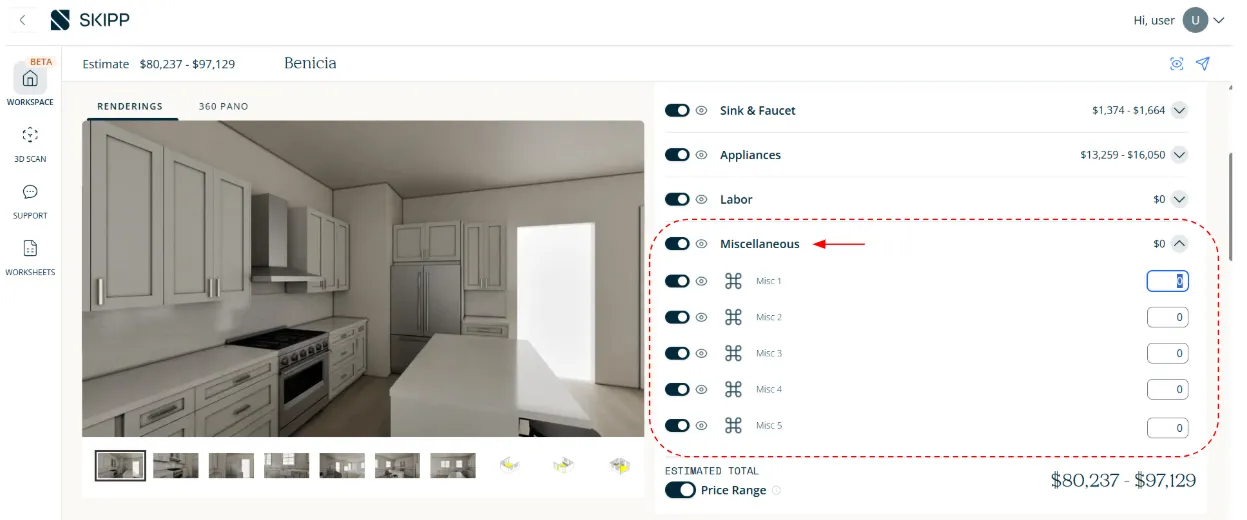
- You’ll find five default sub-items. You can:
- Turn individual items on or off.
- Enter custom prices.
- (Coming soon: the ability to rename the sub-items)
2. Click Save. Once saved, the totals will update accordingly.
- As with other categories, you can also choose to hide the pricing while keeping the line item visible.
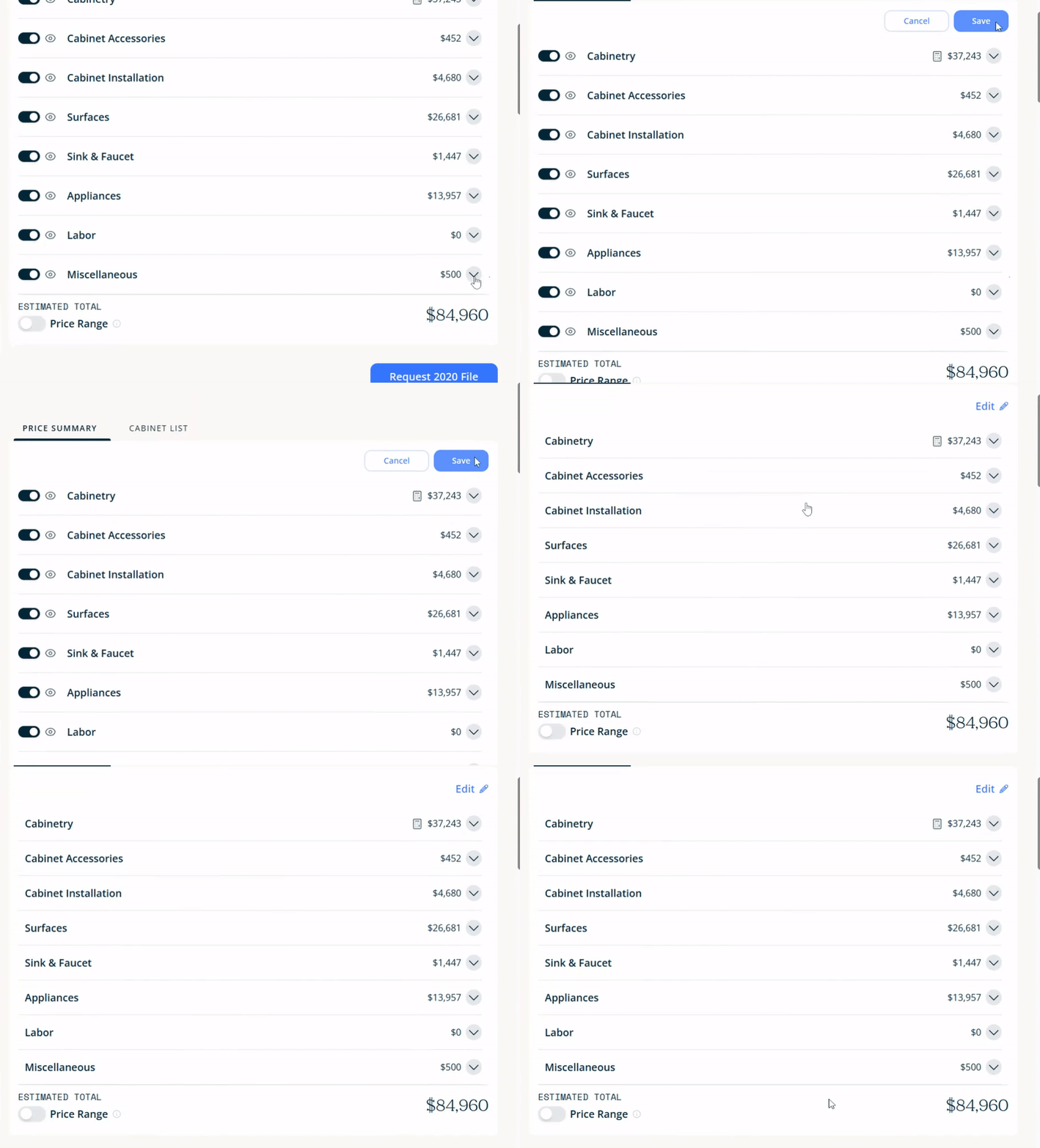
Save your changes
Make sure to click the Save button after you make a change, otherwise the change will not be applied!
What's next?
Once the price quote is ready, you can share with the homeowner.